The problem

You use more work services than ever, but they don't connect.

Mail, messenger, meetings and approvals come from different vendors, so each service has its own sign-in and data, and the AI attached to each one knows only that service.

01

Data is scattered

Conversations, documents, email, meetings and approvals pile up in separate services.

02

Permissions and records don't match

Each service has its own accounts, permissions and audit records, so managing the whole organization is hard.

03

AI sees only fragments

It can't understand or carry forward the real work that starts in email and continues through meetings and approvals.

AI Native

Today's work tools aren't ready to welcome AI as a coworker.

Many companies now add AI features one by one to the email, messaging, approval, document and ERP systems they already use. But these systems were built for people to look at screens and enter and handle things themselves, so AI added later stays a helper that summarizes text or drafts on each screen. It can't become a coworker that takes on work across systems, handles it by company rules and reports back. crewai.work was built from scratch on the idea that AI Crew works as a member of your organization.

AspectAI added to existing work tools
Systems built for people to handle work themselves + AI features
crewai.work
Designed from the start for people and AI to work together
Starting pointMoves people's work onto screens for people to handle themselves. Working with AI wasn't consideredDesigned for people and AI Crew working together in one organization
Where AI fitsSummarize and write buttons in a menu. It only acts when someone calls itA team member in the org chart. It takes on work, asks first when unsure, and reports results
Knowledge of your companySees only the one document you have openKnows who is on which team and how work and files connect, and decides with that in mind
DataEmail, approvals and boards pile up separately, so AI can't see across themEvery service is connected around one organization
How work flowsPeople have to copy email content into approval forms and calendars to keep work movingAI Crew carries work forward from email → calendar → tasks → approval
Permissions and recordsNo record of what AI looked at or didWorks within the same permissions as people, and everything AI Crew does is recorded
A morning with AI added to existing tools
  1. You open your inbox, approval box and calendar one by one to check them.
  2. You copy email content into an approval form and add events to the calendar separately.
  3. When something is long, you try the AI summary button.

Sorting things out and copying them over is still up to people.

A morning with crewai.work
  1. When you start work, you see today's work in the Today brief that AI Crew put together.
  2. You review the reply drafts, approval drafts and event suggestions AI Crew prepared, along with the evidence.
  3. You only decide whether to send, submit or edit.

AI Crew sorts and prepares. People decide.

How people and AI Crew work together

People assign and decide. AI Crew prepares and reports.

AI Crew takes on work like a coworker. When someone assigns work, AI Crew finds the material, makes a draft and reports back, and people make decisions such as sending and approving. The whole flow comes together in the AI Crew command window at the top of every service.

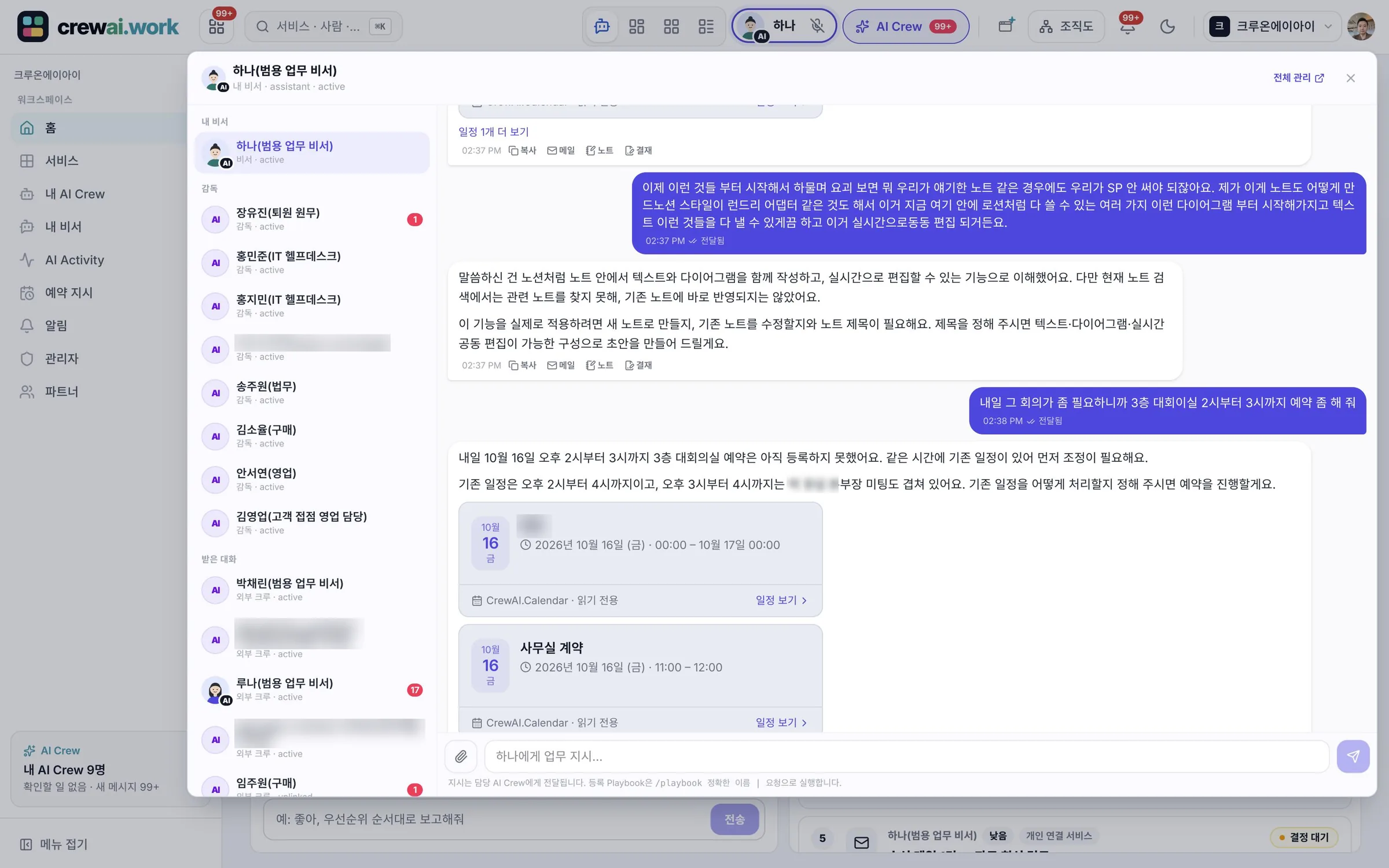
Real command window screen where AI Crew, asked to book a meeting room, found a conflicting event and asked first
Asked to book a meeting room, AI Crew found a conflicting event and asked what to do first.
01
Person

Assign the work

Assign it in the command window or Messenger, the way you'd ask a coworker. For example, "Book the 3rd-floor meeting room for 2 p.m. tomorrow."

02
AI Crew

Looks things up, and asks first when unsure

It checks the email, calendars and documents it's allowed to see. If events conflict or information is missing, it asks instead of deciding alone.

03
AI Crew

Brings back a draft and evidence

It prepares email replies, approval drafts and event suggestions, and shows what it looked at to reach them.

04
Person

Review and decide

Sending, approvals and important changes go ahead only after the person in charge reviews them. AI Crew doesn't decide alone.

Hiring AI Crew

Hire the expert AI Crew you need, the way you hire people.

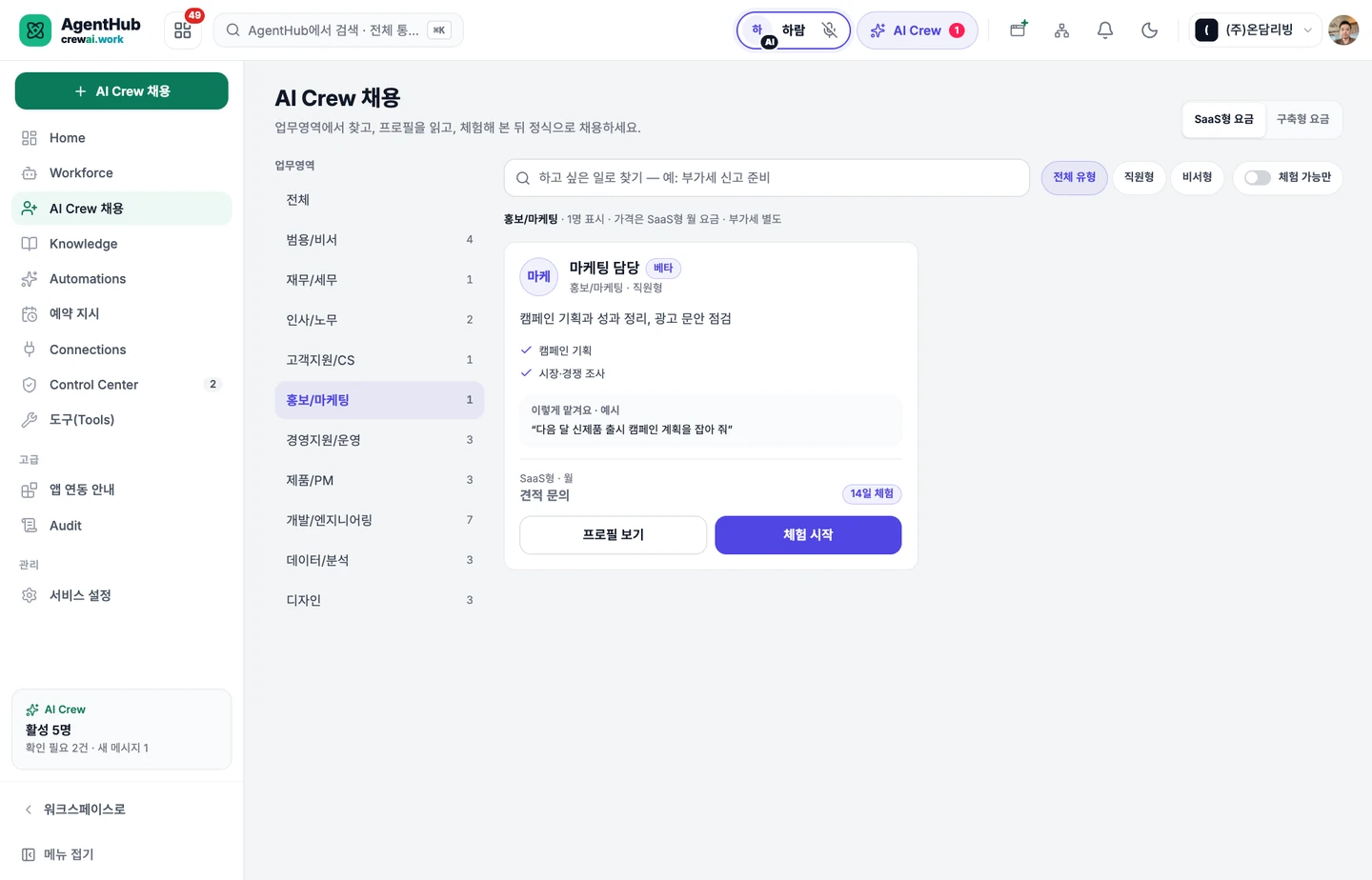
In AgentHub, view résumé-style profiles of AI Crew by work area, try them out, then hire them and place them on a team.

See AI Crew hiring and growth →
Real AgentHub AI Crew hiring list screen, with work area categories and a marketing AI Crew card
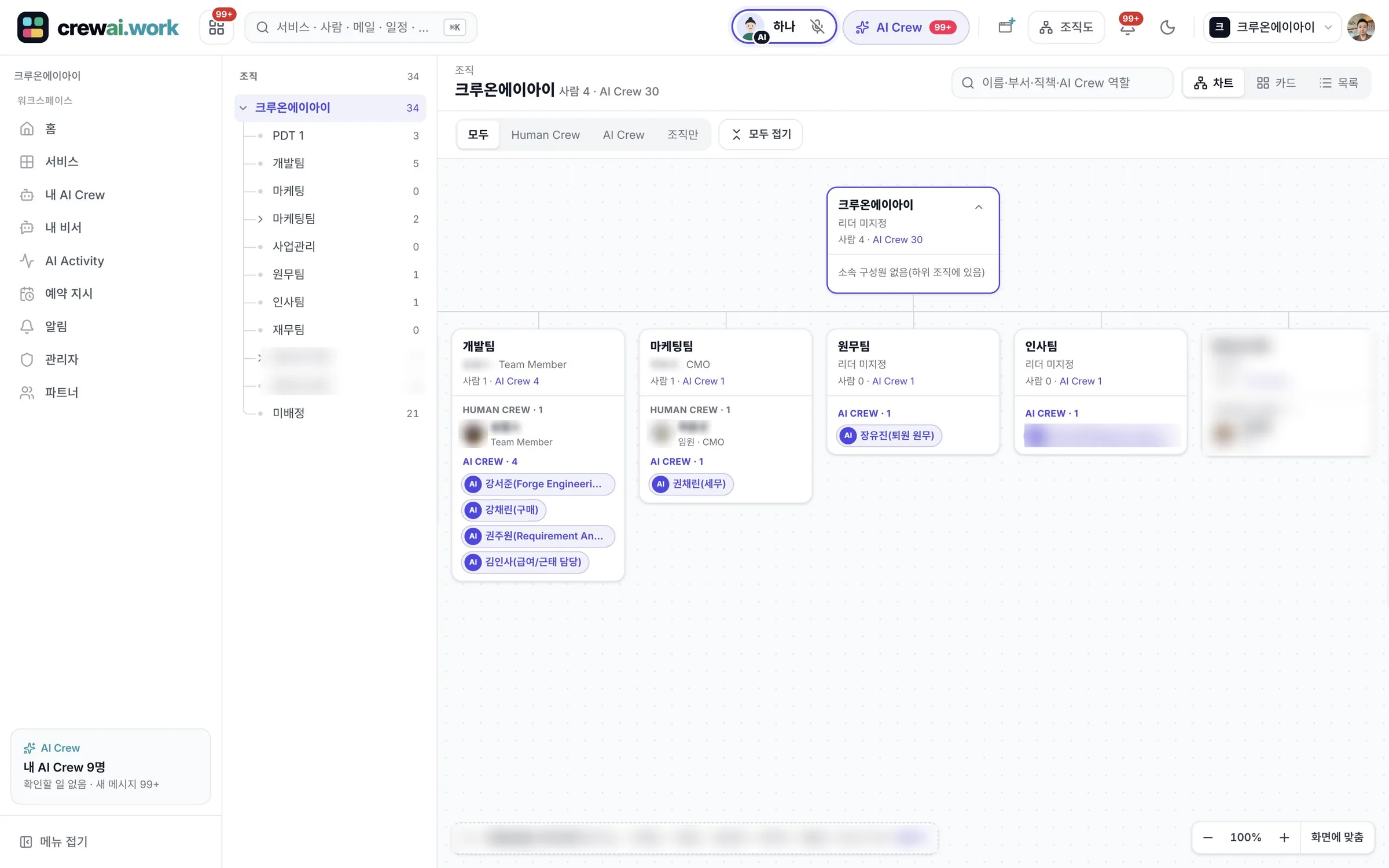
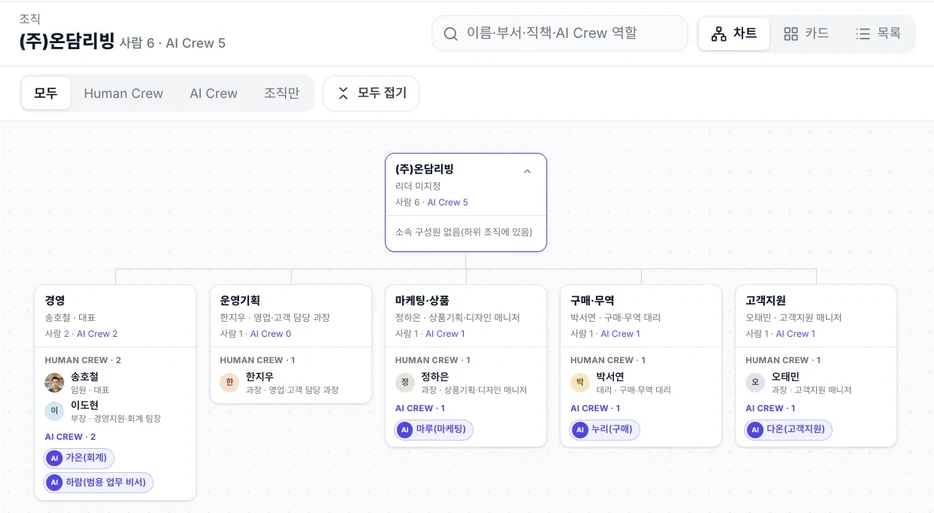
Real org chart screen with hired AI Crew placed on a team alongside human employees
Pick AI Crew by work area and hire them, and they're placed on a team in the org chart alongside human employees.
01

View the profile

See what it can do, the tools it uses and the work it won't take on.

02

Try it

Give it real work first. Even during a trial, people handle payment and approving on someone's behalf.

03

Hire

Place it with a team and a responsible person, and it joins the org chart.

04

Manage

Manage the responsible person, monthly budget, required work rules and memory.

How an AI coworker learns your company

Tell it about your company, and it learns the rest as it works

The AI coworker you hire (AI Crew) arrives with the basics the job needs. Tell it about your company's products, rules and work procedures. It then learns the rest as it works with you, and fits your company better over time.

It builds up step by step Company knowledge is added on top of the basics, and what it learns at work is added on top of that.Stays in your company What you teach it and what it learns stay only in your company and never mix with other companies' AI coworkers.People manage The responsible person can check, edit or delete the rules you taught it and the memory it built up.
Services

From email to approvals, all with one sign-in

Email, messaging, calendars, documents, approvals: the work tools you use every day are in one place. AI Crew works with you on every screen.

Messenger

A team messenger where AI Crew works with you in channels

In ordinary messengers, AI stays a helper that summarizes conversations. In crewai.work Messenger, AI Crew takes on work as a channel member and leaves progress and items to review in the same conversation.

  • AI Crew joins as a teammate · AI Crew takes requests as a channel member, does the work, and posts results and points to check in the conversation.
  • Conversations that link to service cards · Share tasks, notes, meetings and approvals as cards, and go straight from a card to the original screen.
  • One continuous AI Crew conversation · Your conversations with AI Crew in Messenger continue in the same history as the header command window.
With AI CrewIt reviews the request and replies with owners and deadlines
More on Messenger →
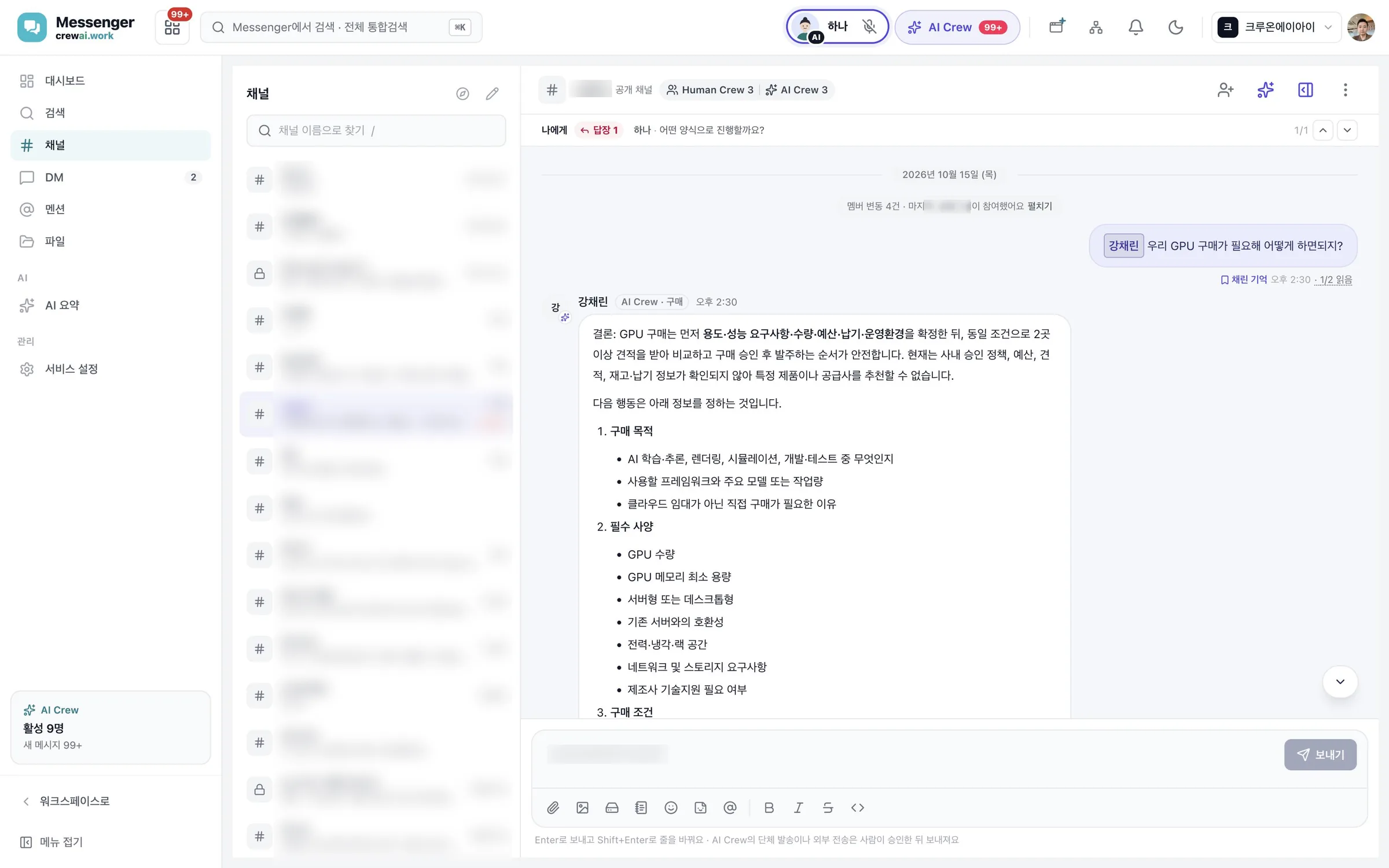
Messenger screen
Mail

AI Crew drafts the reply, a person sends it

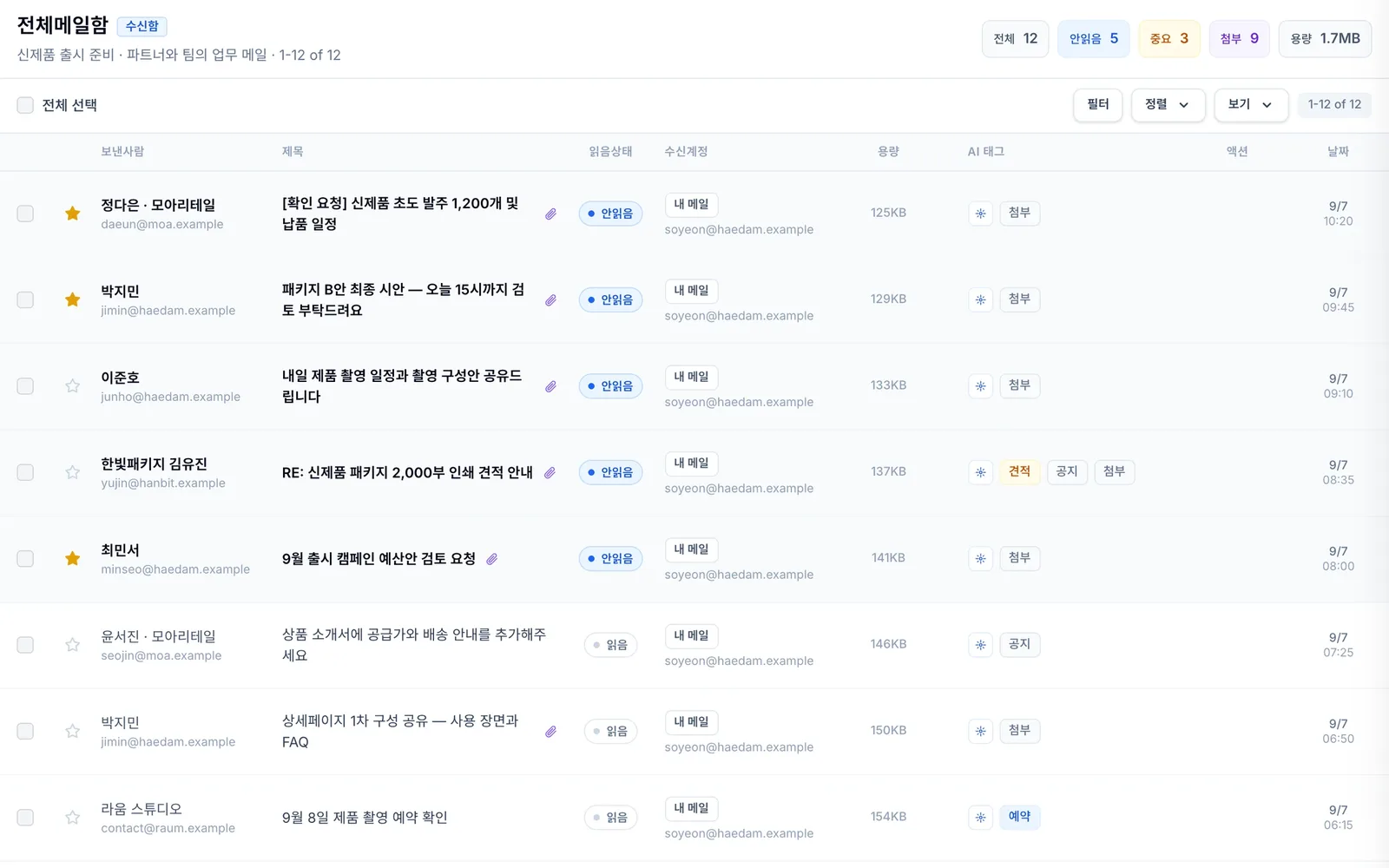
In ordinary email, AI drafts are a personal helper feature. In crewai.work, AI Crew sorts email and writes drafts within your company's permissions, and sending goes through an approval step.

  • Know what each email is first · AI tags mark what kind of email it is, such as a quote, notice or booking, so you pick the ones to handle first.
  • AI Crew drafts, sending after approval · AI Crew's reply drafts collect in 'AI reply drafts', and they go out only after a person approves sending.
  • Email alongside your day · Emails to handle appear in your Today brief, so you review them with events and approvals.
With AI CrewIt summarizes the email and prepares a reply draft
More on Mail →
Mail screen
Video meeting

When the meeting ends, the work moves on to the next service

Ordinary video meetings stop at recordings and captions. In crewai.work, meeting records carry over into notes and tasks, so the work after a meeting doesn't fall through the cracks.

  • Meetings you can revisit · Rewatch recordings, captions and the chat log, and the meeting report keeps building up in the Notes tab during the meeting.
  • Conclusions that become tasks · Tasks from the meeting move to each owner's tasks.
  • Records that continue in Notes · Type /meeting in Notes to insert a meeting record card.
With AI CrewIt joins as the note taker and organizes the discussion
More on Video meeting →
Video meeting screen
Notes

AI suggests what to fix, you decide what to accept

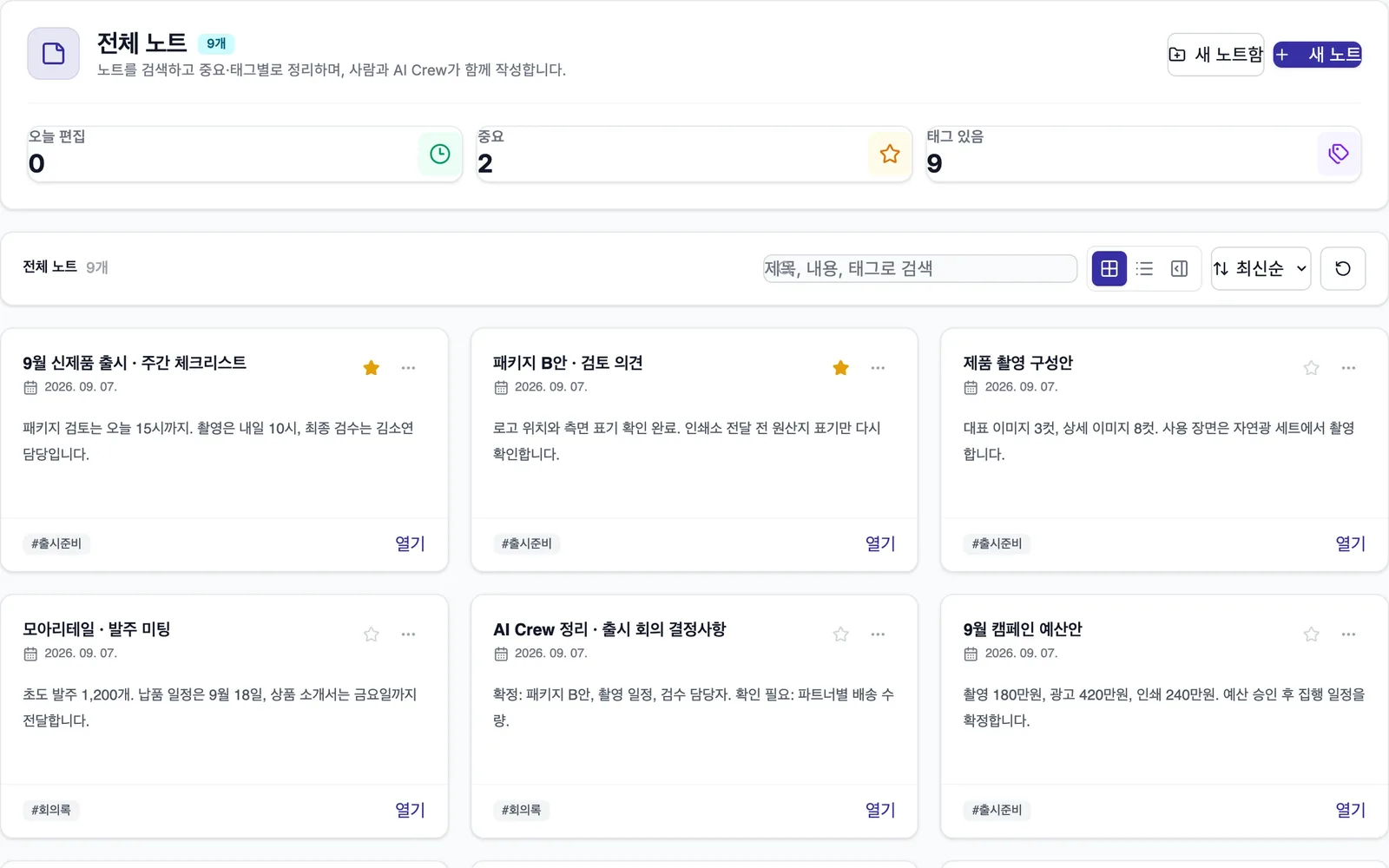
In ordinary document tools, AI writes for you. In crewai.work Notes, AI suggestions appear inside the editor, and a person accepts or edits them one by one.

  • AI suggestions inside the editor · An AI participant points out missing content and numbers and leaves suggested edits.
  • Pick up from meeting records · Use /meeting to bring in a meeting record and keep organizing from there.
  • Documents you refine together · Version history and restore, comments and mentions, and sharing with people, by link or in Messenger, all in one window.
With AI CrewIt finds missing dates and numbers and leaves suggested edits
More on Notes →
Notes screen
Approval

AI Crew drafts and reviews, people approve

When AI is added to ordinary e-approval, it tries to handle even the approval automatically. In crewai.work, AI Crew only provides draft requests and review comments, and approval is always done by people.

  • Draft requests through conversation · AI Crew asks about missing items and writes a draft request that fits the form (beta).
  • AI cannot approve · The system blocks AI Crew from approving anything in the approval line.
  • HR requests use the same approval line · HR requests such as leave requests go through the same approval line.
With AI CrewIt asks about the budget, period and justification and creates a draft request
More on Approval →
Approval screen
AI Crew chat

Not a different AI in every service, but one teammate

Ordinary tools have a separate AI button in each service. In crewai.work, you hand off work to the same AI Crew from the same command window, in any service.

  • One command window for every service · Open the same command window from any service header.
  • Questions and confirmations in one place · Attach files and notes when you hand off work, and AI Crew's questions and confirmation requests gather in one place.
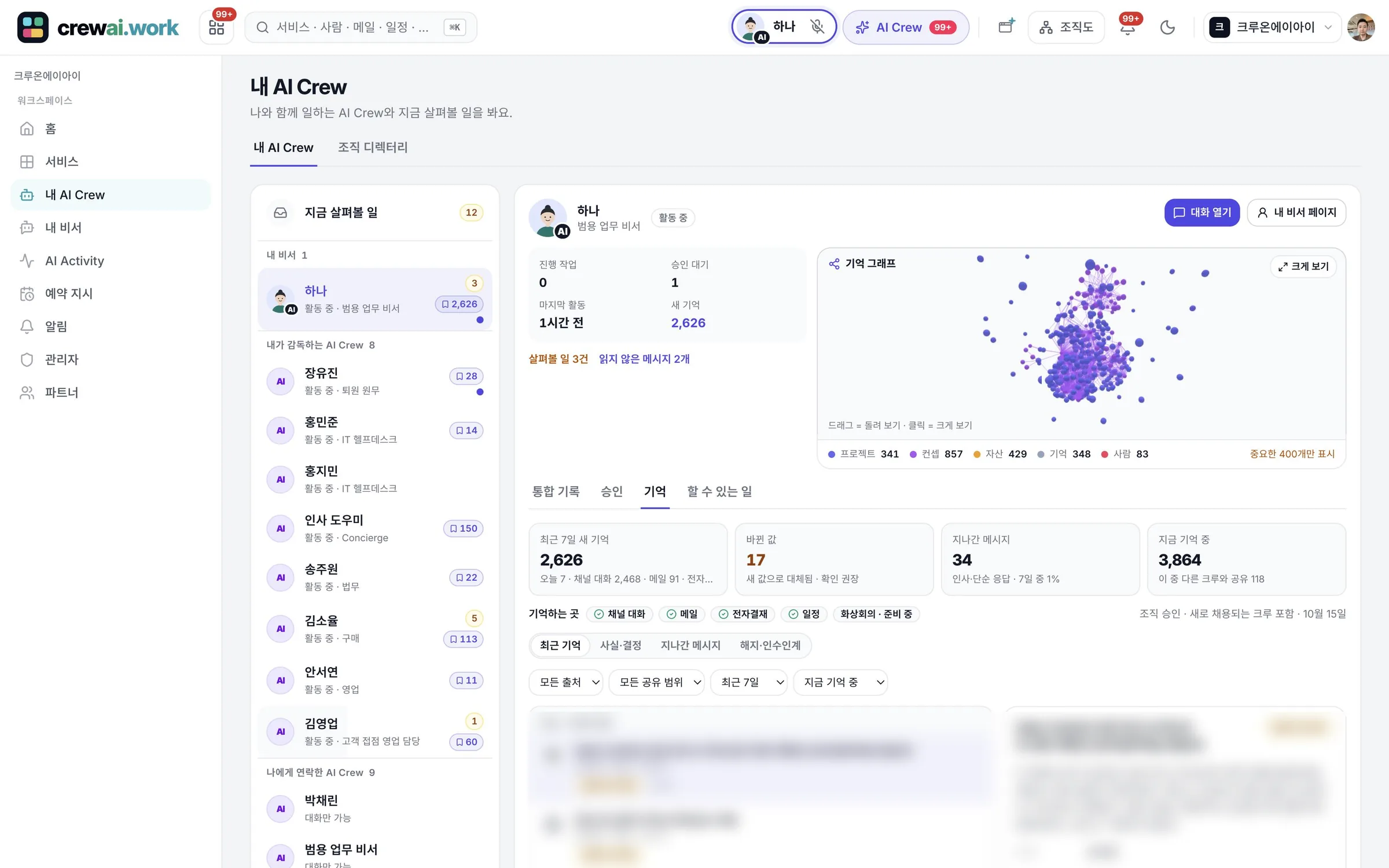
  • Memory you can manage · See AI Crew's memory as a graph, and the responsible person reviews or deletes it.
With AI CrewIt handles the work within the services and materials it is allowed to use
More on AI Crew chat →
AI Crew chat screen

Services by work area at a glance

From starting the workday to department work, here is what each service does and what AI Crew takes on. Select a card to see its features and real screens.

Services marked Beta are still being refined. For now, only approved organizations can use them.

Start of work

What AI Crew does
Gathers what to check today and work in progress, and takes you to the service that handles the work you pick.

  • A home screen that suits you: project view or widget board
  • Find services, people and AI Crew right away with ⌘K
  • Unified search: Mail, Calendar, Approval, Drive, meetings, Messenger and HR at once
Connected servicesAll servicesUnified search
Today briefDetails →

What AI Crew does
Gathers email, events, approvals and work updates, sorts what to see first and reports it with evidence.

  • On your first visit each day, the assistant AI Crew reports the weather, events, email, approvals, anniversaries and tasks
  • Briefs that need a decision stay until handled; the rest move to history after a day
  • Ask it to reorganize with "Check again"
Connected servicesMail · Calendar · ApprovalAI Crew command window
AI Crew chatDetails →

What AI Crew does
Moves work forward within its role and allowed tools, and asks people when information is missing or approval is needed.

  • One command window you open from the header of every service
  • Attach files from this device, Drive or Notes to assign work
  • My assistant page: today, assigned work, confirmation requests, email, calendar
Connected servicesMessengerCrew BrowserAll services
AgentHubBetaDetails →

What AI Crew does
Checks that a hired AI Crew's role, team, files and tools are ready.

  • Résumé-style AI Crew profiles by work area
  • Try it, then hire
  • Assign a responsible person: one for assistants, several for staff-type AI Crew
Connected servicesOrg chartCrew Browser

Communication

What AI Crew does
Reads email, sorts it into tasks, events and replies, and prepares reply drafts and files. People check before sending.

  • Write with To, Cc and Bcc, and reply or forward right away
  • Attachments stay even when you save a draft
  • Notifications tell you when new email arrives
Connected servicesToday brief
MessengerDetails →

What AI Crew does
Takes on work from requests in a channel, and leaves progress and points to check in the same conversation.

  • Channels · 1:1 chats · threads · mentions
  • See who's online and who's typing right away
  • Up to 30 files per message, by drag and drop or paste
Connected servicesTasks · Notes · Meetings · ApprovalAI Crew command windowDrive
Video meetingDetails →

What AI Crew does
Organizes files and agenda before a meeting and carries tasks forward after it. Joining during meetings is in preparation.

  • Video meetings that open right in the browser
  • Replay recordings, captions and chat history
  • During a meeting, meeting notes keep building up in the Notes tab
Connected servicesTasksNotesMessengerDrive
Contact CenterDetails →

What AI Crew does
Answers customer inquiries first, and hands sensitive or unknown inquiries to an agent with evidence.

  • Add a consultation chat to your website with one line of script
  • Inbox, consultation cases and handing off to an owner
  • Manage consultation knowledge and "questions not answered yet"
Contacts

What AI Crew does
Refers to allowed contacts to fill in recipients and attendees when preparing email and events.

Docs · calendar · tasks

CalendarDetails →

What AI Crew does
Sums up upcoming events and related work in briefs, and suggests adding events found in email.

  • Events and recurring events, change or cancel just one occurrence
  • Meeting room and resource booking, and a view of your bookings
  • File attachments and external invite links on events
Connected servicesToday brief

What AI Crew does
Finds and summarizes allowed files, and uses them as evidence for email, approvals and briefs.

  • Upload, folders, move, rename and restore from trash
  • Full search by file name and content
  • Previews of documents and images
Connected servicesAI Crew command windowMessengerVideo meeting

What AI Crew does
Polishes and summarizes documents, checks numbers and gaps, and suggests fixes.

  • Folders, tags, version history and restore
  • Refine together with comments and mentions
  • Share with people, by link or to Messenger from one window
Connected servicesVideo meetingMessengerAI Crew command window

What AI Crew does
Finds and suggests task candidates from email, meetings and approvals, and adds only the ones people accept.

Approval · admin

ApprovalDetails →

What AI Crew does
As one step in the approval line, checks against rules and flags risks. People give final approval.

  • Draft with forms, and set approval lines from the org chart
  • Approve, reject or withdraw, and leave comments
  • File attachments on approval documents
Connected servicesHRMessengerToday brief
WorkflowBetaDetails →

What AI Crew does
Finds the work procedure that fits a request, and reports each step's progress and what to check next.

  • Import verified work procedures (playbooks) Beta
  • Edit and publish your company's version Beta
  • Add steps where people check Beta
Admin consoleBetaDetails →

What AI Crew does
Shows AI Crew as work agents distinct from members, and manages their placement, access scope and activity records.

  • Manage members, invites and roles
  • Set role × service permissions in a table, with individual exceptions
  • Set the organization time zone
Connected servicesAI CrewAll services

Department work

AccountingDetails →

What AI Crew does
Finds allowed accounting data to help check transactions and ledgers, and gathers the evidence reports need.

  • General, purchase and sales vouchers
  • Books, trial balance, closing and financial statements
  • Fixed assets and VAT return prep

What AI Crew does
Organizes employee requests so they're easy to understand, and connects the relevant policies and status to the person in charge.

  • Employee records and employment contracts
  • Employees view their own information and request changes
Connected servicesApprovalOrg chart
TradeFlowDetails →

What AI Crew does
Gathers documents and progress for each import or export case, so delays and gaps are easy to spot.

  • Import case management and document center
  • Shipping and customs progress tracking
  • Cost allocation
Connected servicesDrive · files
Real screens

AI Crew reviews documents and takes part in approvals on the same screens as people

From document review in Note to approval lines in Approval and on the mobile app, AI Crew works on the same documents as your employees. People always make the final decision.

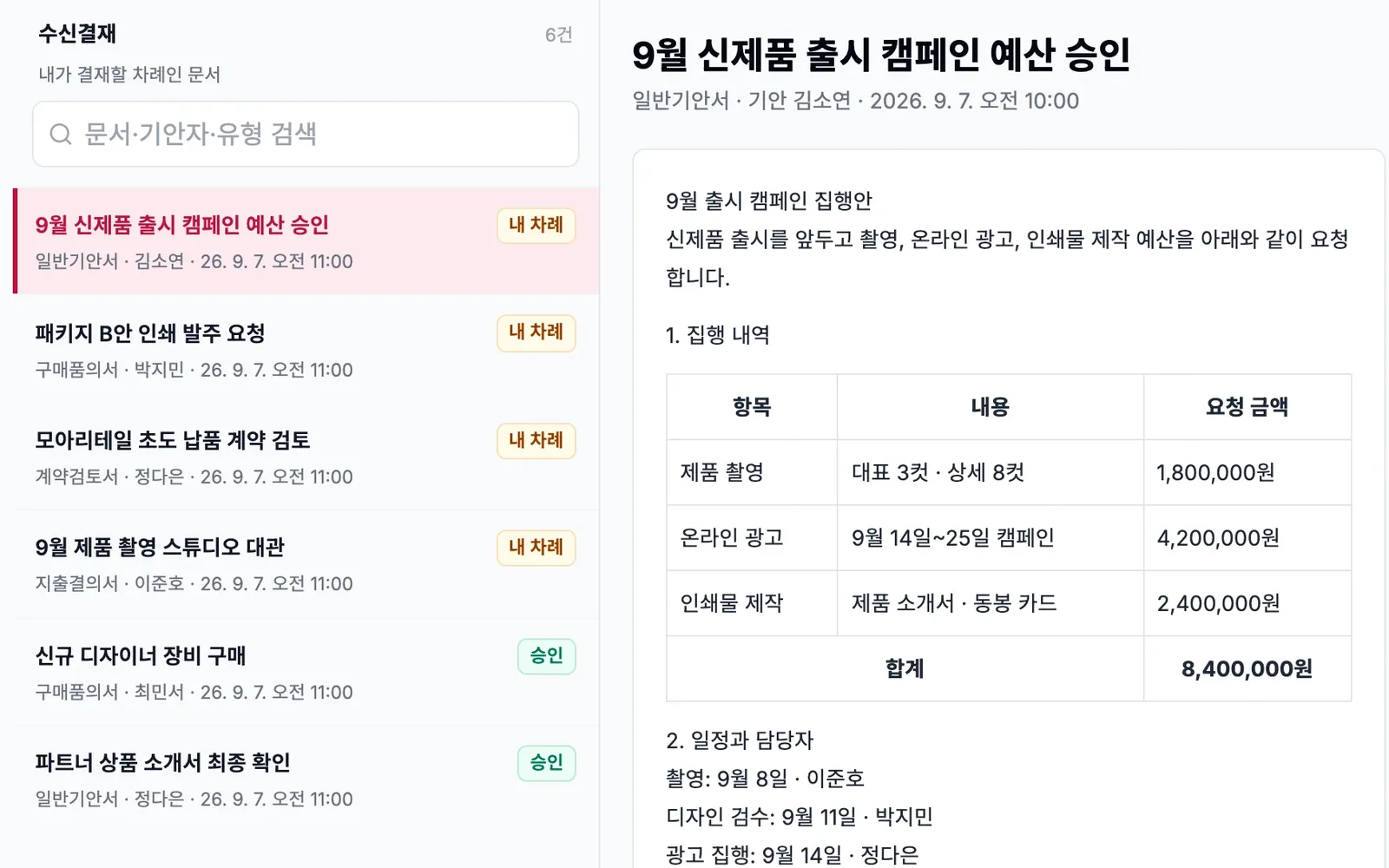
It takes part as one step in the approval line

Two AI Crew review first, and the final approval stays with a person.

Details →

Assign document review

It checked totals and missing owners and due dates, and left the results. The author decides what to apply.

Details →

The same work on iPhone

iOS beta

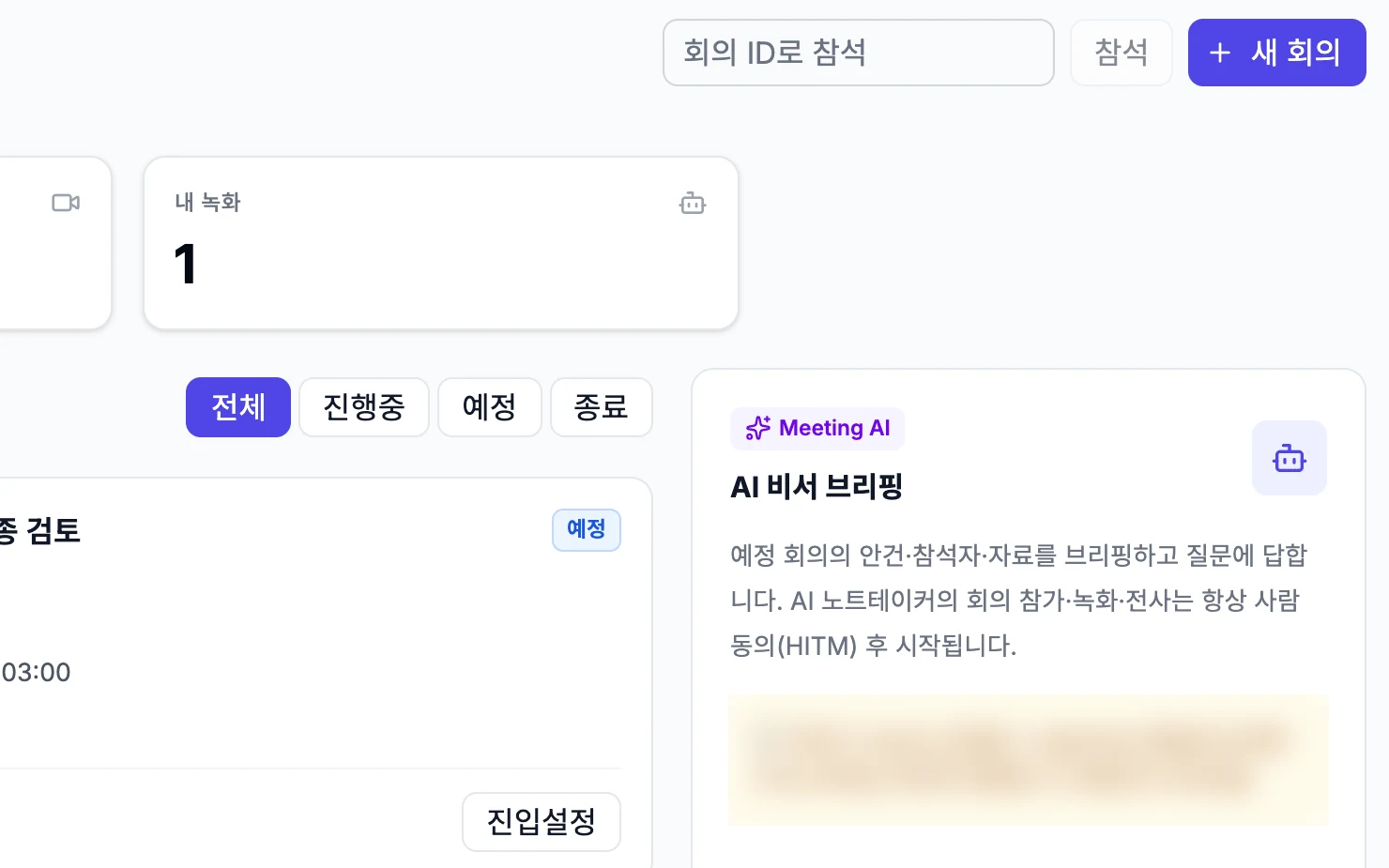
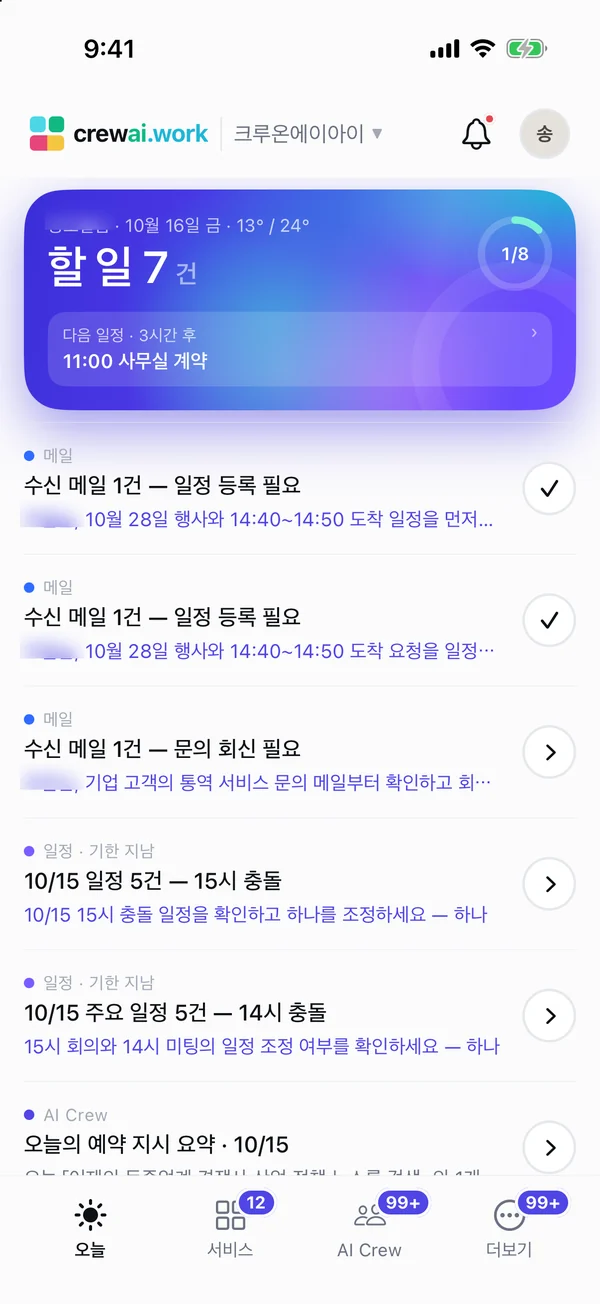
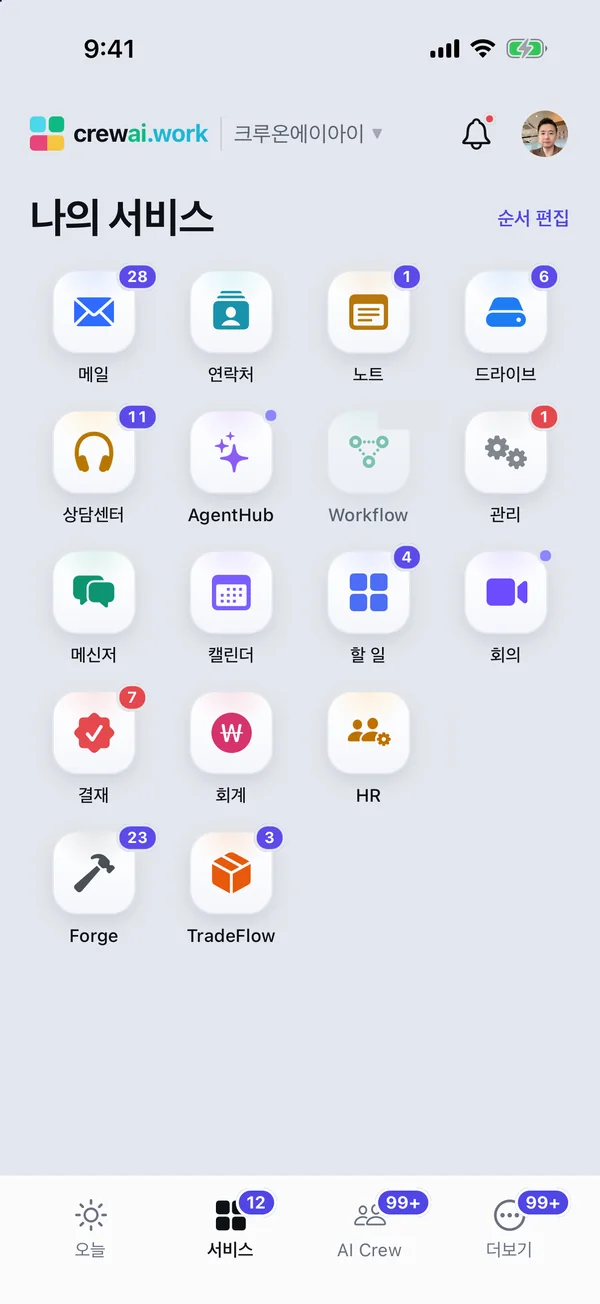
Open it with the same account and data as the web. Check today's tasks, assign work to AI Crew and continue in every service.

Details →
iPhone app Today screen
See what to do today first
iPhone app services screen
The same services as the web, with one account
Memory · integrations

AI Crew remembers what you worked on together and uses it for the next task.

Just as people build context working with colleagues, AI Crew remembers what happened in conversations, email and approvals. So you don't have to explain from scratch every time.

See memory and connections →
01 · Experience

It learns where the work happens

  • Messenger chats
  • AI Crew command window chats
  • Received email
  • Approval
  • Calendar

It remembers only sources the organization allows.

02 · Remember

It links people, projects and files

ProjectConceptFileMemoryPerson

Rotate and zoom the memory graph; pick a point to change the linked memories and the list on the right

03 · Use it next time

It works with context

It continues the conversation

Just say "that quote from last time" and it finds the conversation and files and picks up from there.

It writes drafts with evidence

It finds related email and approval history and attaches it as evidence to reply and approval drafts.

It follows up first

It remembers promised events and unfinished work and puts them in your brief.

Separate for each organization

Memory is stored separately for each organization and never mixes with others.

People manage it

See what it remembered in the Memory tab, and remove or delete it.

Can be undone

Removed memories can be restored within 30 days.

Connections

Your AI coworker works inside the systems you use today

There's no need to move to a new system. AI Crew connects to the ERP, CRM, HR systems and internal portal your company already uses to find information, prepare what needs to be entered and report the results. It looks things up right away, and enters or changes data only after the responsible person approves.

Connections use APIs and MCP, a standard way to let AI use another system's features only within set permissions. Internal web screens without an API are handled with Crew Browser (beta).

External services you use

Connect accounts for the outside services your company already uses, such as email, calendars and documents, and AI Crew uses them as tools. We are adding more services that can be connected over time.

crewai.work AI Crew

Works within delegated permissions

Admin approvalRecords who it acts forPeople approve big actions
Existing apps · in-house systems
ERPGroupwareCRMMESHRIntranetOther AI tools
A

Use the external services you already use. Connect the drive where your files are kept, and it uses those files where they are, without moving them, as evidence for replies and approval drafts.

B

Existing apps call AI Crew. When a purchase request comes into ERP, AI Crew reviews it against the rules and sends back its opinion.

C

AI Crew works in existing apps. It finds CRM deal history to use in replies, and makes ERP entries after the responsible person approves.

D

It also handles internal web screens without an API (beta). Crew Browser finds and organizes lists on the screens people use and fills in the fields of approval requests. People do the saving, submitting and paying.

Possible scenarios

In every industry, you can work together like this.

AI Crew prepares and checks; people judge and decide.

ManufacturingCustomer quality claims and 8D repliesTier 1 auto parts supplier · SaaS · reads in-house systems through connectors
Today

Reply deadlines get buried in email, and inspection and shipping evidence is gathered by hand from each system.

With AI Crew
AI Crew · 1

Summarizes customer email and adds the reply deadline to the calendar

AI Crew · 2

Looks up affected lots and shipping history in MES and ERP, read-only

AI Crew · 3

Attaches inspection records as evidence to the 8D draft and checks deadlines and attachments before approval

People decide

Shipment holds, confirming the root cause, sending the customer reply

What AI Crew doesn't do: hold shipments, confirm the root cause, reduce supplier payments

FinancePreparing corporate loan review documents and approval memosRegional savings bank focused on SME loans · on-premises · network separation, with the AI runtime also installed internally
Today

Documents are requested again and again, and errors creep in when numbers are copied into approval memos.

With AI Crew
AI Crew · 1

Finds missing documents with a checklist and drafts the request

AI Crew · 2

An approval memo draft with a financial summary and document sources in a table

AI Crew · 3

Flags limits, restrictive clauses and missing attachments in the approval line, with evidence

People decide

Credit rating, limits, approval decision and customer notice

What AI Crew doesn't do: decide credit ratings, limits or approval, notify customers

Public sectorReceiving information disclosure requests and preparing disclosure decisionsLocal government of 400,000 people · on-premises · runs inside the internal work network
Today

Most of the deadline goes to finding the documents, and missed personal data redactions are a worry.

With AI Crew
AI Crew · 1

Summarizes the request and suggests candidate departments to handle it

AI Crew · 2

Searches for candidate documents and sources within the responsible person's permissions

AI Crew · 3

Drafts candidate non-disclosure sections and personal data redactions, and checks deadlines and grounds before approval

People decide

Disclosure decision, deadline extension, sending notices, approval

What AI Crew doesn't do: decide disclosure, extend deadlines, send notices, approve

DefenseDefense technology protection surveys and security audit preparationMid-sized defense company making components · on-premises · closed network, no external connections
Today

When an inspection notice arrives, weeks go into gathering evidence, and tracking of past findings breaks down.

With AI Crew
AI Crew · 1

Splits inspection items into tasks by department and suggests them

AI Crew · 2

Compares training, access and removal logs read-only and flags gaps

AI Crew · 3

A corrective action plan draft with an owner and due date for each finding

People decide

Pass or remediation decisions, submission to the agency, final approval

What AI Crew doesn't do: decide whether technology applies or passes, submit to the agency, take data out

HealthcareChecking medical claims for discharged patients before billingTertiary hospital insurance review team · on-premises · hospital network, separate from EMR
Today

Each case is checked against the criteria by hand, and replies to requests for doctors' confirmation are scattered.

With AI Crew
AI Crew · 1

Compares diagnoses, prescriptions and drugs against coverage criteria

AI Crew · 2

Flags items at risk of reduction, with evidence

AI Crew · 3

Drafts requests to doctors to confirm records

People decide

Doctors complete records; reviewers finalize claims

What AI Crew doesn't do: change diagnoses or prescriptions, finalize claims, edit records directly

These scenarios use fictional organizations and are not customer cases. The actual integration scope is set during adoption discussions.

Deployment

SaaS to start fast, on-premises inside your environment

We offer the same product in two ways. Choose based on your organization's security requirements and operations.

See SaaS and on-premises →
SAAS

SaaS

Sign up and start right away. crewai.work handles operations and updates.

Apply for the beta
ON-PREMISES

On-premises

Installed inside your environment, so you manage data and AI directly.

On-premises consultation
AspectSaaSOn-premises
Getting startedRight after you sign up and create an organizationAfter a consultation, set the installation and integration scope and build
Where it's installedcrewai.work cloudYour infrastructure · network separation · closed network
Data and recordsStored in the cloud, separated by organizationData, activity records and logs stay with you
Updates and operationsHandled by crewai.workRun by you or a build partner (scope set in the contract)
Accountscrewai.work account · Google sign-inLinked to your existing company accounts (SSO)
AI Crew runtimeConnects to the Crewon.ai cloudCrewon.ai is also installed in your environment
LLMApproved commercial modelsChoose an on-premises model or an approved commercial model
Best forTeams and companies that want to start fastFinance · public sector · defense · healthcare · mid-sized and large companies

For on-premises, the detailed scope, data location and operating responsibility, and quality and GPU scale by model are validated against your work and set during the adoption consultation. On-premises is delivered with a build partner, and partner support is also available through Talk to sales.

Adoption

Start small and grow together.

You can start by choosing one real task and trying it with AI Crew.

01

Talk to sales

Sort out the real work, approval method and the services you need.

02

Set up the organization

Create a workspace and set up members and roles.

03

Try AI Crew

Start with an assistant AI Crew and see the effect.

04

Hire and expand

Expand the services and AI Crew you need, team by team.

FAQ

Check common questions first

More questions are in the Help Center, by sign-up and accounts, pricing, data, security and AI Crew.

See all FAQs →
AI CrewWhat is AI Crew?

An AI colleague placed in your company that works within its role and allowed tools. When information is missing it asks people, and work that affects the outside stops at a human approval point.

AI CrewDoes AI Crew send email or approve things on its own?

No. AI Crew does allowed work such as lookups and preparing drafts, and high-impact work such as sending outside or approvals follows policy and human approval boundaries. Only people can make payments.

AI CrewHow do I hire AI Crew?

An organization admin finds AI Crew on the AgentHub hiring screen, checks what it does and the tools it uses, then hires it. A hired AI Crew is placed on a team with a set role and permissions.

DataCan other companies see our organization's data?

No. The server enforces each organization's data and permission boundaries. Seeing a name in the organization directory doesn't by itself grant access to data.

DataWhat happens if I disconnect a connected external service?

The stored connection credentials are revoked and syncing stops. Data already synced is deleted according to an account deletion request or the retention policy.

Sign upHow do I sign up?

Start on the sign-up screen with an email and password or a Google account. After signing up, create an organization workspace or accept an invite you received. Pre-registration for the November closed beta is open now.

AdoptionDo you support large organizations or on-premises?

Tell us your organization's size, the services you need and whether you want SaaS or on-premises through Talk to sales. For on-premises, the scope, data location and operating responsibility are set in the adoption contract.

PricingHow do payment and tax invoices work?

Payment for paid plans isn't open yet. We'll explain payment methods, billing cycles and how tax invoices (Korea) are issued when paid payment starts.