AI Crew helps with draft requests, and people always make the approval
Approval keeps your company's decisions in one flow, from drafting with a form to setting an approval line from the org chart, to approving, rejecting and withdrawing. AI Crew asks about missing items and prepares draft requests and review comments. The system blocks AI Crew from approving, so approvers always make the decision themselves.
Designed for: Team leads and executives with documents waiting for approval, staff who spend time writing purchase requests, and admins who set approval rules
When you need it
Approvals are usually slow not because of the decision itself, but because of the preparation and checking around it.
A purchase request gets rejected because the quote or delivery date is missing, and a day passes before it is submitted again. When AI Crew first asks about missing items in a conversation and fills in the draft request (beta), the drafter can focus on checking that the content is right.
Approvers move between Mail, Messenger and the approval inbox to find documents waiting on them. Approval gathers the documents waiting on you at the top, and tells you the result through phone notifications and Messenger cards.
When leave requests and work requests are spread across different places, it is hard to find out later who approved what. Leave requests from HR and work requests flow into Approval and stay in the same approval record.
How it differs from general work tools
AI Crew cannot press the approve button. Its comments do not change the approval status, and the approver must be a different person from the drafter.
Say "Submit a purchase request" in the AI Crew command window, and AI Crew asks about missing items and writes a draft. The drafter checks it and submits it themselves.
Approval documents are shared as Messenger cards, and results arrive as phone notifications. Leave requests and work requests also flow straight into Approval.
Key features
It has the basics you need for approvals, from draft requests to decisions and records.
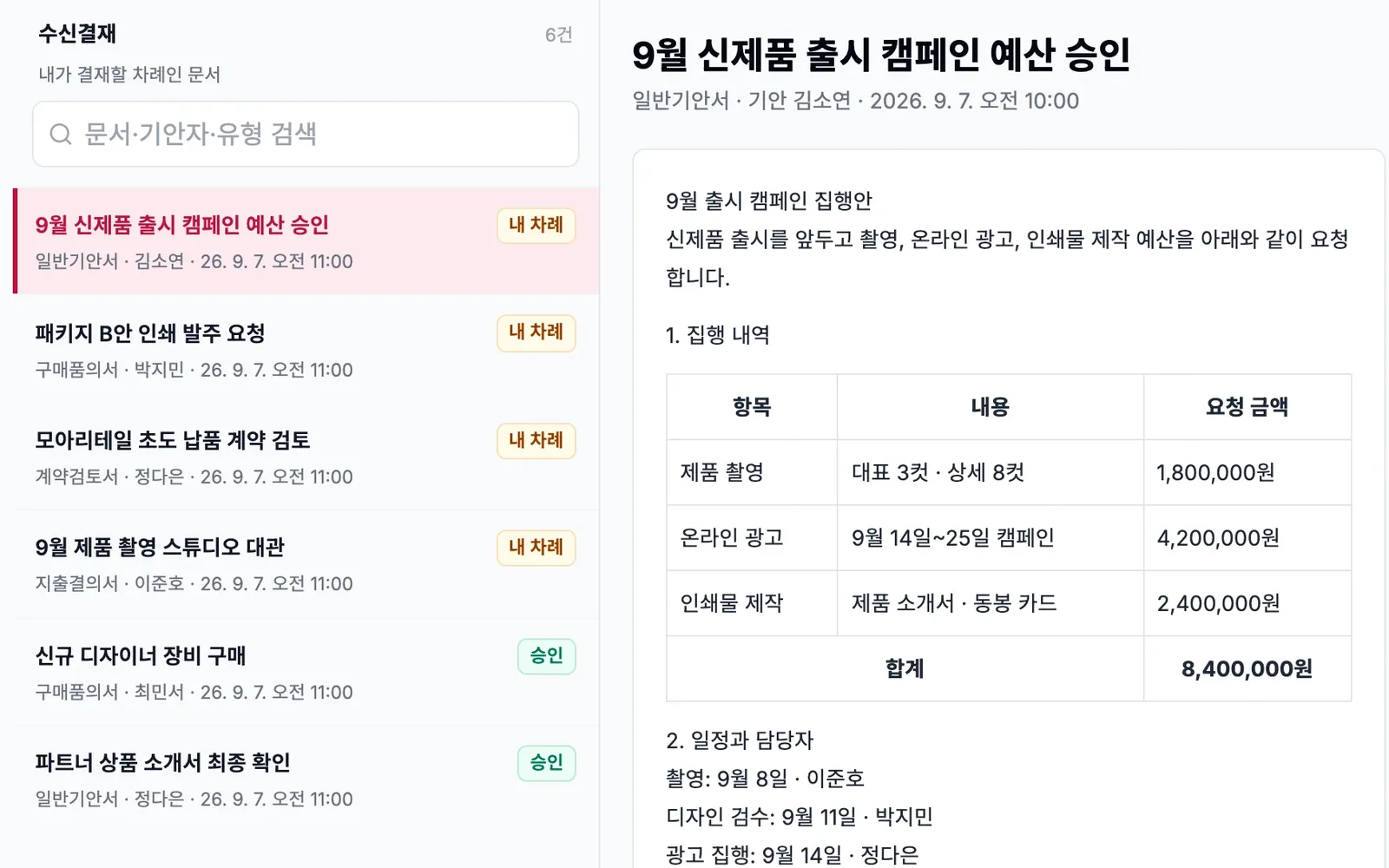
Draft requests with forms for each type of work, and an approval inbox
Pick the right form for the work, draft the request and attach the files you need. In the approval inbox, documents waiting on you gather at the top, shown with the form, drafter and date. You spend less time deciding what to handle first.
- Pick a form, draft and attach files
- Documents waiting on you shown first
- A form editor for building your own forms is in preparation
Approval lines from the org chart, and approve, reject or withdraw
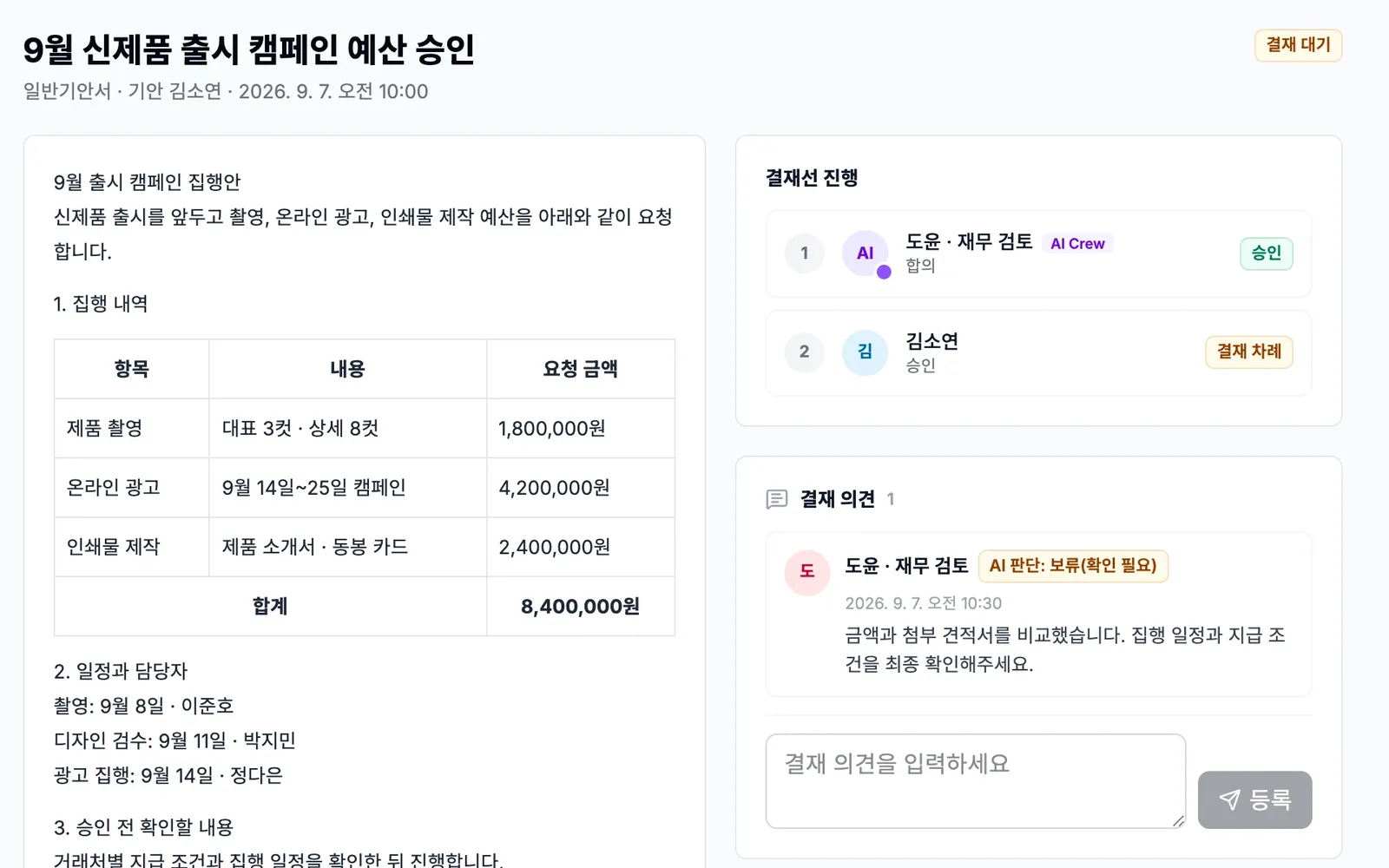
Build the approval line by picking people from the org chart. Approvers read the request and approve it, or reject it with a comment. The drafter can withdraw the document if needed. Every decision and comment stays on the document.
- Set the approval line from the org chart
- Approve, reject, withdraw and leave comments
- The approver must be a different person from the drafter
AI Crew help with draft requests and review comments
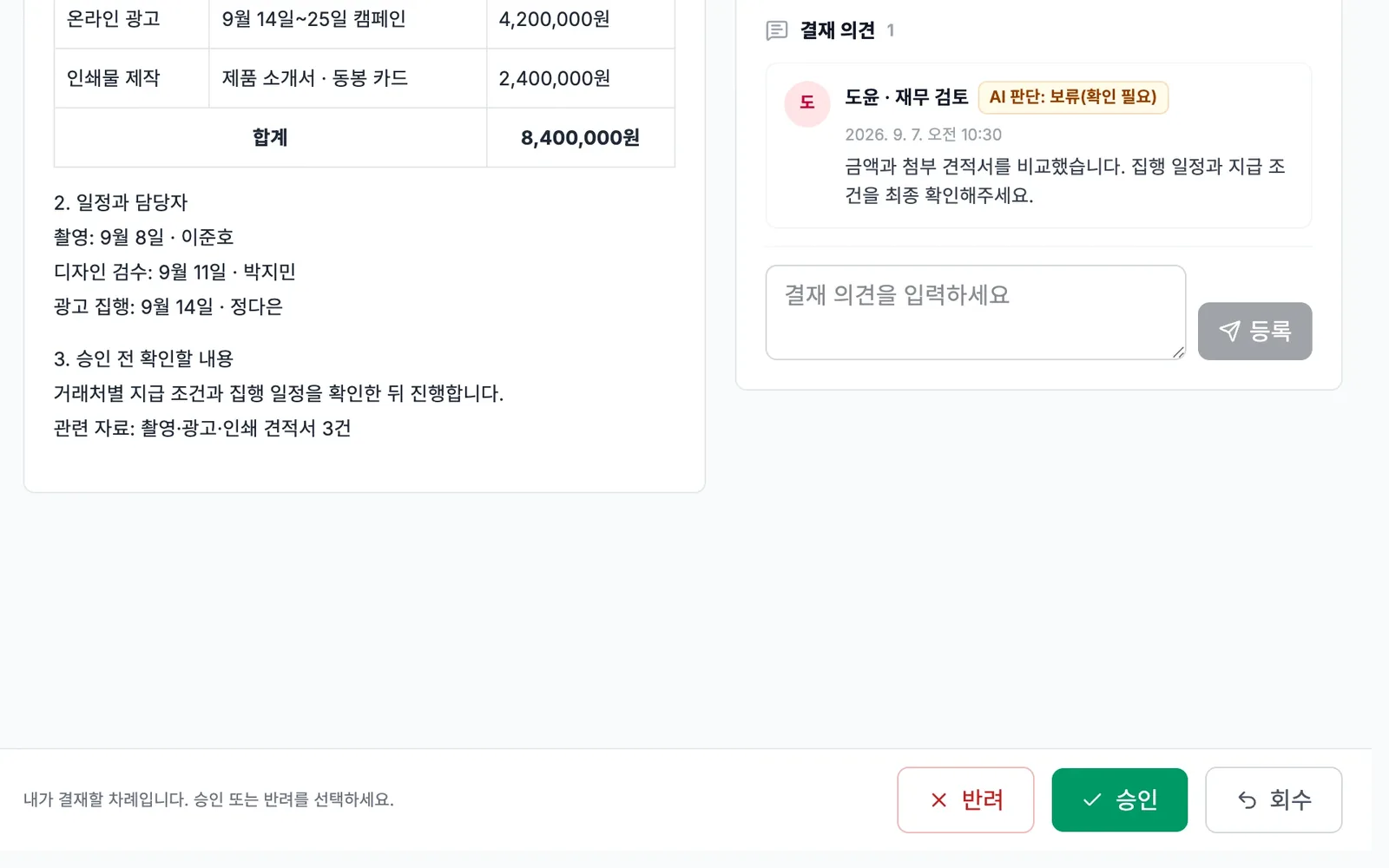
AI Crew asks about missing items in a conversation and writes a draft request. It also looks up approval documents and leaves review comments. The comments list the points that need checking, for the approver to refer to. Only people can approve and reject.
- Draft requests that ask about missing items in a conversation (beta)
- Look up approval documents and leave review comments
- The system blocks AI Crew from approving
Messenger cards and phone notifications
Share approval documents as cards in Messenger conversations, and go from a card straight to the original approval screen. Get approval results as phone notifications, so you know the progress even when you are away from your desk.
- Share approval cards in Messenger
- Go from a card to the approval screen
- Phone notifications for approval results
Approvals that start from leave and work requests
When you request leave in HR or submit a work request, it becomes an Approval document. Even when the request and the approval happen in different places, the record stays in one place.
- HR leave request → approval
- Work request → approval
- See approval records in one place
Approval card in the AI Crew command window
We are preparing a dedicated card for viewing approval documents and checking their progress inside the AI Crew command window. On this card too, approvers approve the request themselves.
- View approval documents in the AI Crew command window
- Only the approver can approve
What AI Crew does and what people decide
- Asks about missing items in a conversation and writes a draft request (beta)
- Looks up approval documents and explains their progress
- Leaves review comments listing points to check
- Withdraws a submitted document when the person who handed off the work asks
- Checking the draft request and submitting it
- Setting the approval line
- Deciding to approve or reject (AI Crew cannot)
- Judging amounts and contract terms
- Whether to approve on someone's behalf
Working with AI Crew: an example
Example: the fictional company Ondam Living Co. submits a purchase request for the first production run of its new fall product, the "Ondam mug set".
The merchandiser attaches the OEM factory's quote in the AI Crew command window and says, "Submit a purchase request for the first run of the mug set."
AI Crew points out that the delivery date and budget are empty, gets the answers, and writes the draft request (beta). It shows the draft to the drafter before submission.
The merchandiser checks the amount and quantity, sets the team lead and the division head as the approval line from the org chart, and submits the request.
The team lead and then the division head open the document from a Messenger card, read AI Crew's review comments, and each approve it personally. The result goes to the drafter as a phone notification.
Connected work in other services
Leave requests become Approval documents.
Share approval documents as cards, and go from a card to the approval screen.
Your assistant AI Crew reports documents to approve on your first visit of the day.
Find approval documents in unified search and open them right away.
Write draft requests through a conversation (beta). A dedicated approval card is in preparation.
Approval content becomes a source for AI Crew's memory. You can view and remove it in the memory tab.
Admin and security
- The system blocks AI Crew from approving or rejecting.
- The approver must be a different person from the drafter.
- Admins can make the human check rules stricter, but they cannot loosen them.
- Admins decide for each role whether it can use Approval, and add exceptions only for the people who need them.
- Approvals, rejections, withdrawals, comments and AI Crew's activity records are kept.
Frequently asked questions
Can AI Crew approve in place of the approver?
No. The system blocks AI Crew from approving, so it can only leave review comments. Approving on someone's behalf is also always done by a person.
What are AI Crew's review comments for?
They are reference material for the approver. They list the points that need checking, but the approver decides whether to approve or reject.
Can I use the draft request feature now?
It is available in beta. It asks about missing items in a conversation and writes a draft, and the drafter checks the content and submits it themselves.
Can we build our own company forms?
The form editor is in preparation. The forms you need are scoped together during a talk with sales.
Can I follow approvals when I am away from my desk?
You get approval results as phone notifications. An iPhone app that includes the approval screen is being tested as a beta.
Can we move records from the approval system we use now?
Connections to existing systems and the scope of data migration are decided together during a talk with sales.
Related pages
Start with AI Crew in the November closed beta.