Hand work to AI Crew and get reports in the same command window, from any screen
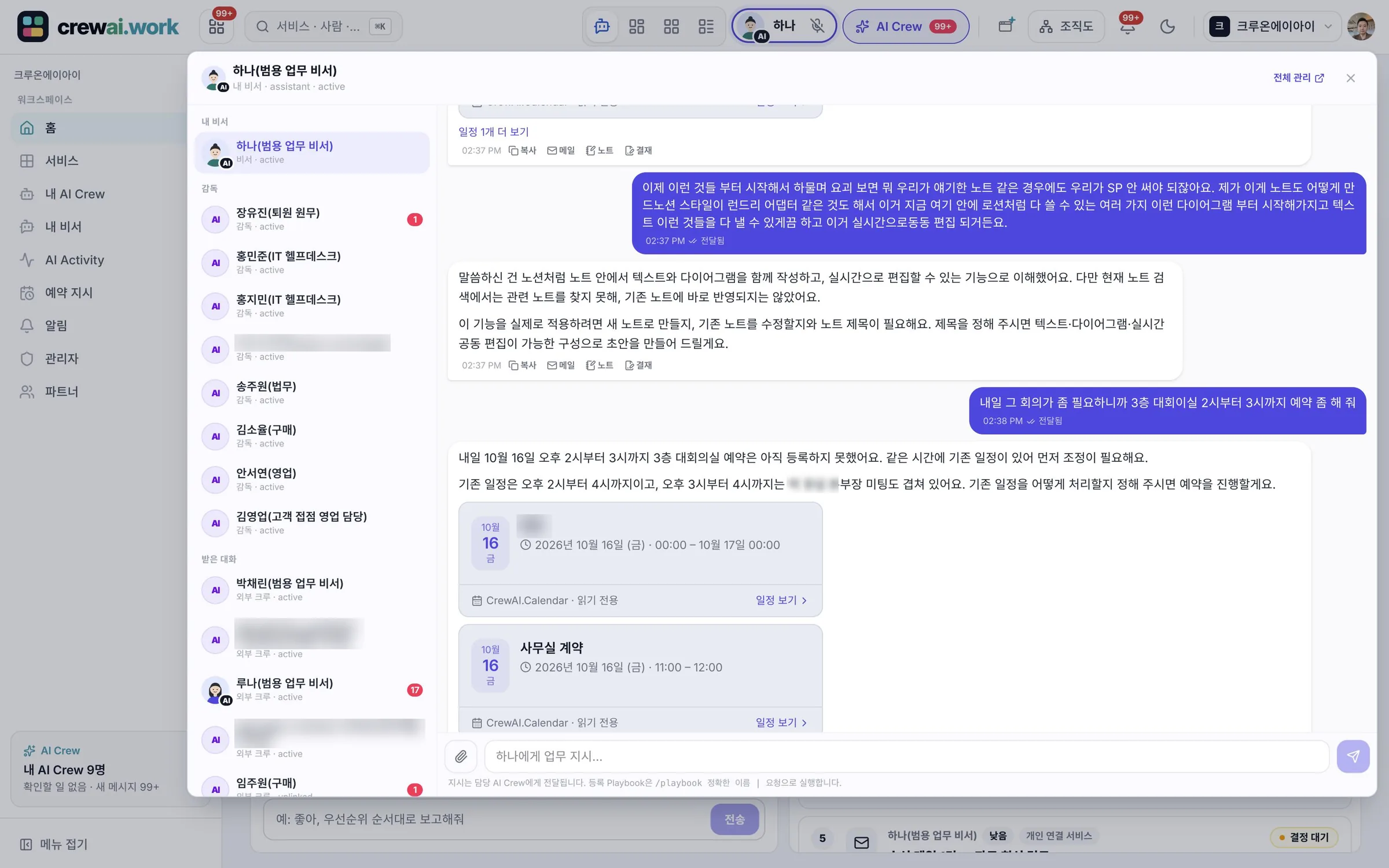
Every service has the same AI Crew command window at the top of the screen. Pick the AI Crew to hand work to and describe the task. Follow-up questions, check requests and result reports all come back to this one conversation. On the My assistant page, you see your handed-off work and the items you need to check in one place.
Designed for: For every member who hands work to AI Crew, especially people who move between several services during the day.
When you need it
You want to ask for help scheduling while writing an email, or ask for a comparison while reading a quote in Drive. If each service has a different helper window, it is hard to remember what you handed off and where.
The AI Crew command window is the same conversation in every service. If you hand off work from the Mail screen and get the result on the Calendar screen, the context still carries over.
When AI Crew asks a follow-up question or asks you to check something, it does not get scattered. All questions and reports gather in one place, and unread ones are marked separately.
How it differs from general work tools
Every service has the same single command window at the top of the screen. Your direct messages with AI Crew in Messenger are part of the same conversation record.
Hand work to your assistant AI Crew or to another AI Crew you work with. It works like dividing tasks among teammates.
When AI Crew asks for missing information or asks a person to check, it comes to the same conversation. You can answer right away by picking an option.
Key features
The same AI Crew command window in every service
In any service, open the command window at the top of the screen and pick the AI Crew to hand work to. Results are reported in the same conversation, and unread reports are marked.
- Pick the AI Crew to hand work to
- Reports in the same conversation
- Unread markers
Continuing conversations and a conversation inbox
AI Crew picks up the context of earlier conversations. In the conversation inbox, you see AI Crew's follow-up questions, check requests and reports together, and answer right away by picking an option.
- Conversation context carries over
- Conversation inbox
- Answer by picking an option
Attach files
Attach files from this device, Drive files or notes when you hand off work. PDFs and images can be up to 20-25MB, on both web and mobile.
- This device, Drive and Notes
- PDFs and images up to 20-25MB
- Web and mobile
My assistant page
See today's tasks, handed-off work, check requests, email, events and settings on one page. See at a glance how far the work you handed to your assistant AI Crew has come.
- Today, handed-off work, check requests
- Email, events
- Settings
Memory graph
See what AI Crew has remembered while working, as a 3D graph. See what it remembers, and remove memories you do not need in the memory tab.
- 3D memory graph
- View and remove memories
- Restore removed memories within 30 days
A personal assistant from day one
When you finish the getting-started screen, a personal assistant AI Crew is hired automatically. With no extra setup, you can hand it work from day one.
- Hired automatically on the getting-started screen
- Hand off work right away in the command window
Talk by voice
Have a voice conversation in Korean with your assistant AI Crew on the web (Chrome desktop) and on iPhone. Recordings are deleted right after they are turned into text, and only the text is kept.
- Chrome desktop and iPhone
- Korean
- Recordings deleted right away, only the text kept
What AI Crew does and what people decide
- Understands the work it is given and asks if information is missing
- Finds, reads and summarizes materials, and writes drafts
- Does low-risk internal work right away and reports back
- Sends a check request first for anything going outside the company
- Which AI Crew to hand which work to
- Checking external sending, external sharing and deletion
- Approvals and payments are done by people themselves
- Which of AI Crew's memories to remove
Working with AI Crew: an example
An example from the fictional company Ondam Living Co.
The customer service team lead opens the AI Crew command window on the Mail screen, attaches the "Mug set product details" file from Drive, and asks for a draft FAQ.
The assistant AI Crew asks with options: "Which should I cover first, washing instructions or delivery time?"
The team lead has moved to the Calendar screen to check events, and picks "Washing instructions first" in the same command window.
AI Crew writes the draft and reports in the same conversation. The team lead edits it and saves it in Notes.
Connected work in other services
Direct messages with AI Crew are the same conversation record as the command window.
Attach Drive files to the command window when you hand off work.
Attach notes to the command window when you hand off work.
Morning reports and decision cards from your assistant AI Crew.
Hire more AI Crew to work with.
Admin and security
- AI Crew works only within the permissions of the person who handed off the work
- External sending, external sharing, deletion, approvals and payments need a person's check or are done only by people
- What AI Crew did is kept in activity records
- Memory is kept separate for each company, and you can view and remove it in the memory tab
Frequently asked questions
Is the command window different in each service?
No. Every service has the same single command window at the top of the screen, and the same conversation continues wherever you open it.
Can I see my Messenger conversations with AI Crew in the command window?
Yes. AI Crew direct messages in Messenger and the AI Crew command window are the same conversation record.
What files can I attach?
You can attach files from this device, Drive files and notes. PDFs and images can be up to 20-25MB.
Will AI Crew send email in my name without asking?
Email going outside the company is sent only after a person checks it. AI Crew works only within the permissions of the person who handed off the work.
Can I hand off work by voice?
It is offered as a beta. You can have a voice conversation with your assistant in Korean on the web (Chrome desktop) and on iPhone. Recordings are deleted right away, and only the text is kept.
Can I find work I handed off earlier?
Yes. Handed-off work and reports stay in the same conversation. You can also see them together under "Handed-off work" on the My assistant page.
Related pages
Start with AI Crew in the November closed beta.